Google Maps settings for electric vehicles: key features explained
 © RusPhotoBank
Learn how to configure Google Maps for electric vehicles to plan routes with charging stops, account for temperature, and save energy. Essential tips for EV owners.
Author: Boris Naumkin
For electric vehicle owners, Google Maps has long been more than just a navigation tool. When properly configured, the app becomes a comprehensive trip planning instrument that accounts for charging, temperature, and actual range. The catch is that many features are disabled by default or tucked away in settings menus. Expert Dmitry Novikov outlined to SPEEDME the key settings to activate when driving an EV.
The first and most crucial step is specifying your vehicle type. Until you select an electric powertrain in settings, the app continues to calculate routes as if for a combustion-engine car. Once you enable EV mode, Google Maps prioritizes charging stations and adjusts its routing logic accordingly. Without this setting, the calculations remain incomplete.
During active navigation, you can search for charging stations directly along your current route. This proves especially handy if consumption turns out higher than expected due to cold weather, wind, or high speeds. The app shows how far a station will divert you from your path, its power rating, user reviews, and lets you add it as a waypoint without restarting the route.
In compatible cars and Android Automotive systems, Google Maps automatically includes charging time in the final estimated arrival. Drivers see not just the "pure" travel time, but the real duration accounting for stops. For an EV, this is fundamentally important, since distance alone says little without understanding charging duration.
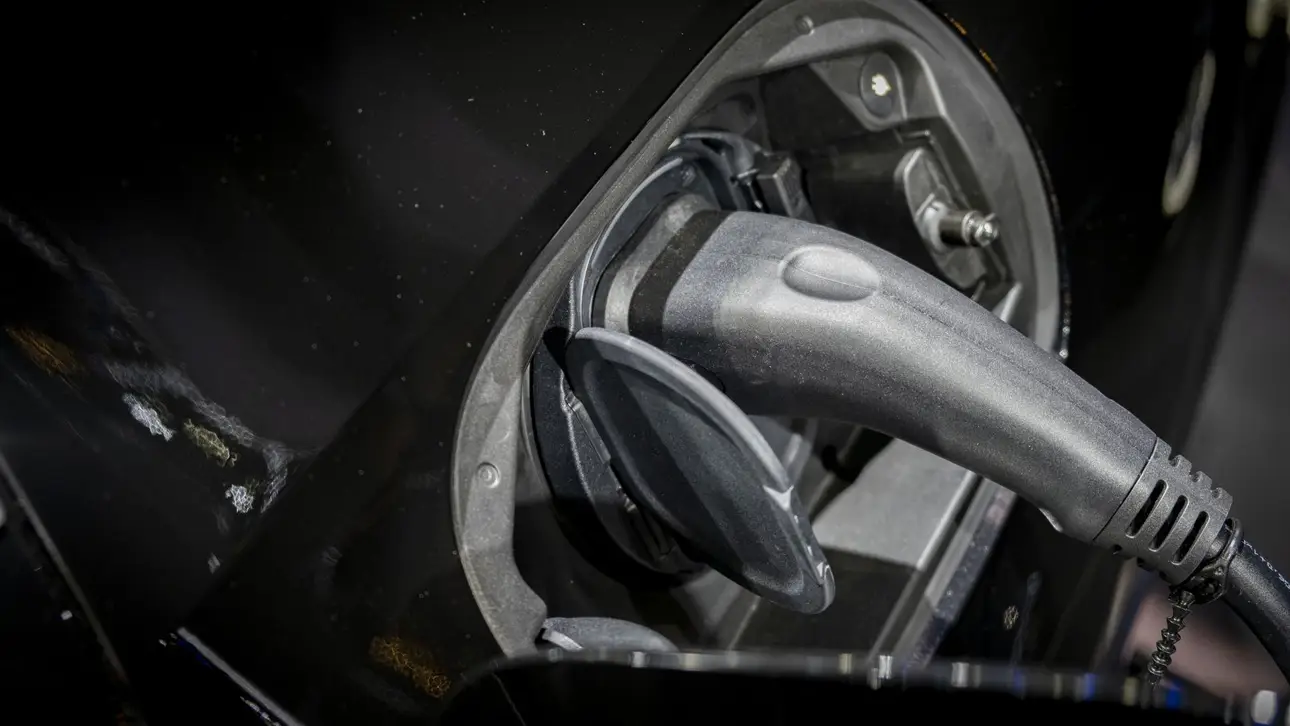
Another key detail is the display of charging power. The station card lists the maximum power in kilowatts, letting you distinguish a fast DC station of 100 kW or more from a slower AC point. This is critical on highways, where the difference between 22 kW and 150 kW can mean an extra 40–60 minutes of waiting.
Google Maps also shows the connector type—CCS, CHAdeMO, or Type 2—and the station operator. For trips abroad, this matters especially, as connector incompatibility can completely derail charging plans. User ratings help gauge a station's reliability and whether queues are common.
In some vehicles, the app factors in ambient temperature. In winter, real range can drop 20–30 percent compared to official figures, and the navigator may suggest an extra stop it wouldn't plan in summer. This helps avoid finding the battery at a critical level.
Finally, the fuel-efficient route function also works for electric vehicles. The algorithm considers terrain, avoiding sharp elevation changes and sections with intense acceleration. Sometimes a route that's a few minutes longer can save enough energy to eliminate one charging session.
A separate practical point is combining charging with a break. During navigation, you can search for cafés and restaurants along the route and choose those located near charging stations. This turns a necessary stop into a comfortable pause rather than wasted time.
For an EV owner, properly configuring Google Maps makes the difference between a stressful journey and a predictable route. Most features are already available, but only work after activating the right parameters. That's why it's worth spending a few minutes on setup—on a long trip, it pays off many times over.
This English edition was prepared using AI translation under editorial oversight by SpeedMe. The original reporting is by Boris Naumkin
Latest Stories